

Most teams do not struggle with “WordPress work.” They struggle with WebOps.
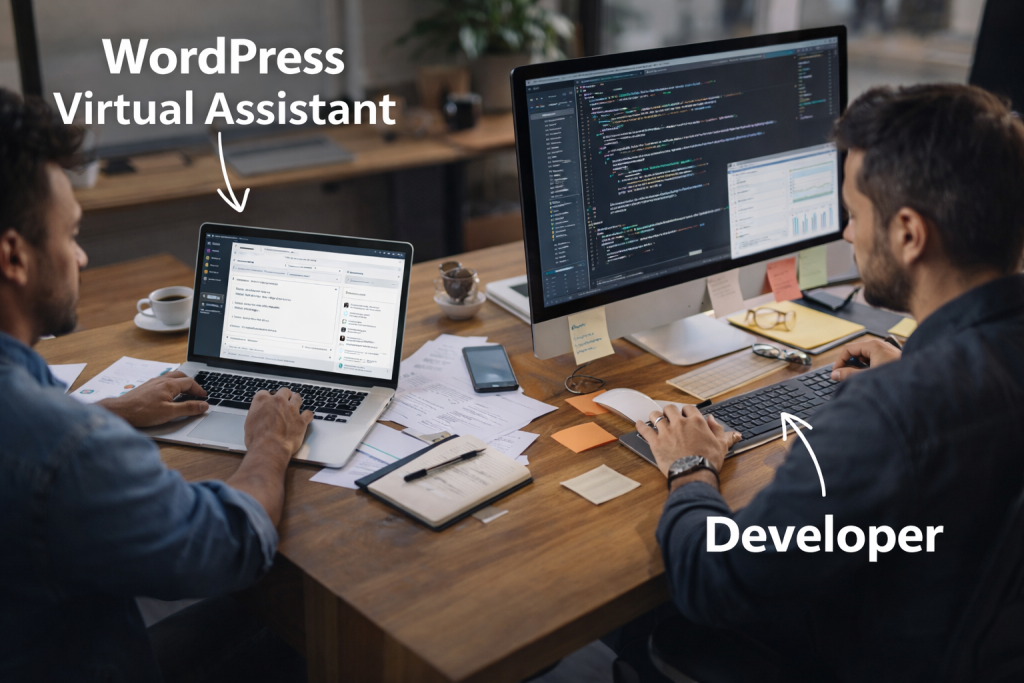
A WordPress Virtual Assistant runs Website Operations (WebOps): the repeatable work that keeps a site healthy and publishing on schedule. A developer handles engineering: code, architecture, and deep debugging. When you blur that boundary, you pay senior rates for admin work, ship fewer updates, and build technical debt.
Key Takeaways
- Treat site support like WebOps, not one-off tasks.
- Delegate repeatable, SOP-driven work to a WordPress VA.
- Escalate code, architecture, and mystery bugs to a developer.
- Lock down access with least privilege, roles, and activity logs.
- Run updates with backup, staging, and rollback, every time.
- Make your VA write developer briefs so fixes land faster.
- Use one rule: SOP work = VA. Investigation work = developer.
Why this matters now
WordPress dominates the CMS market. W3Techs reports WordPress on 42.8% of all websites, which gives it ecosystem ubiquity and makes it a prime target for automated exploits.
Speed and UX punish neglect. Google’s research shows that when load time increases from 1 second to 3 seconds, bounce probability increases 32%.
Plugins drive a large share of risk. Patchstack reports plugins as the source of 97% of new security vulnerabilities in the ecosystem.
These pressures force a simple question: who owns weekly WebOps, and who owns engineering escalation?
The core concept explained clearly
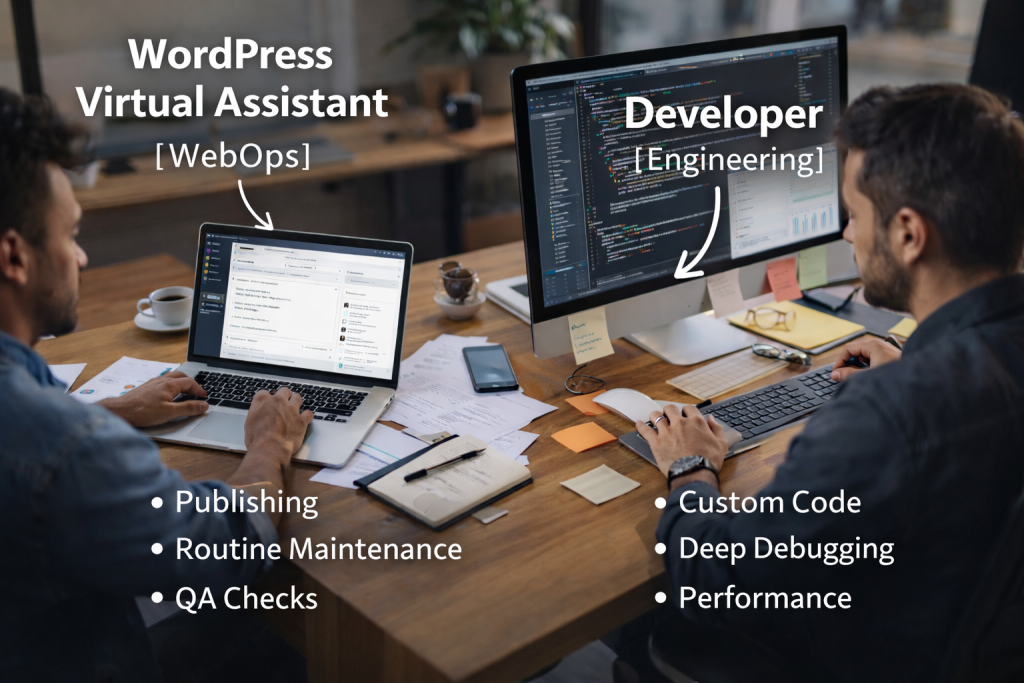
WordPress Virtual Assistant vs developer: think WebOps vs engineering
A WordPress VA runs the weekly heartbeat: publishing, routine maintenance, QA checks, and tracking hygiene. A developer protects code integrity: custom builds, deeper performance work, error logs, conflicts, database issues, and complex WooCommerce failures.
Pro tip: If a task follows a Standard Operating Procedure (SOP), your VA can own it. If a task requires troubleshooting a mystery, your developer should take it.
What system do most teams actually need?
They need a WebOps framework that turns chaos into a routine:
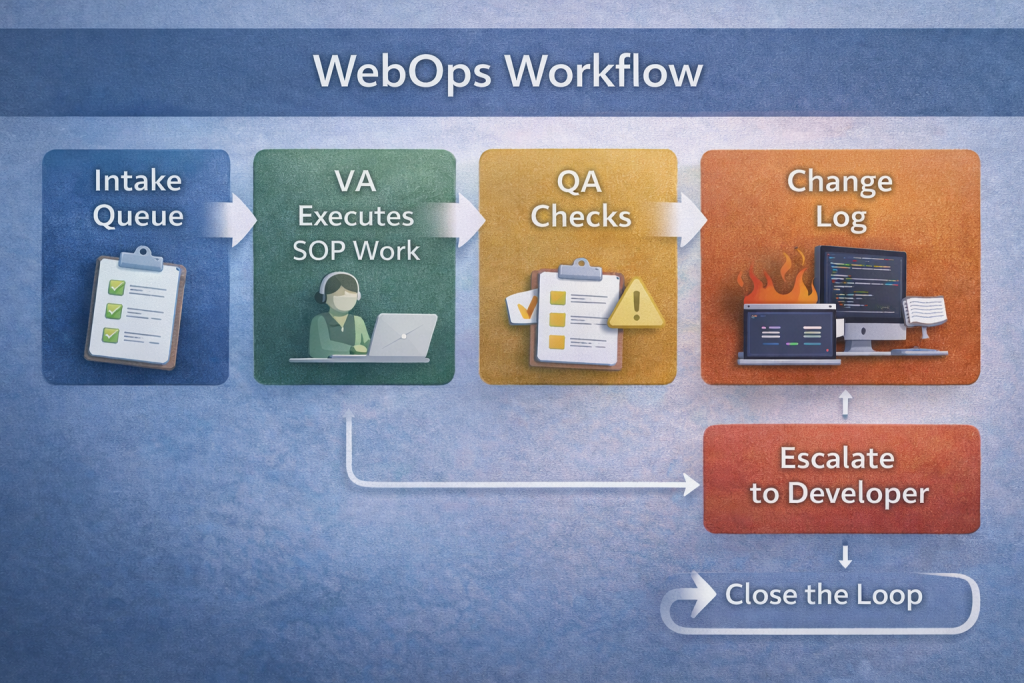
- a queue (tickets or a task list)
- a cadence (weekly and monthly checklists)
- access controls (roles, passwords, audit trail)
- an escalation rule (what crosses into engineering)
That framework keeps costs predictable and reduces breakage.
What does a WordPress virtual assistant do?
A WordPress assistant typically handles:
- publish and format posts in Gutenberg or a page builder
- add internal links, headings, and meta data in Yoast or Rank Math
- compress images, convert to WebP, add alt text
- run plugin and theme updates with QA checks
- test forms, booking flows, and lead routing
- monitor uptime and basic security alerts
- maintain product content for ecommerce
- keep a change log so you can trace every edit
People confuse “small” with “safe”
Small tasks can still break revenue paths. A “tiny” plugin update can break a checkout. A “simple” form change can stop lead emails. WebOps reduces risk through process, not optimism.
Quick questions buyers ask (and fast answers)
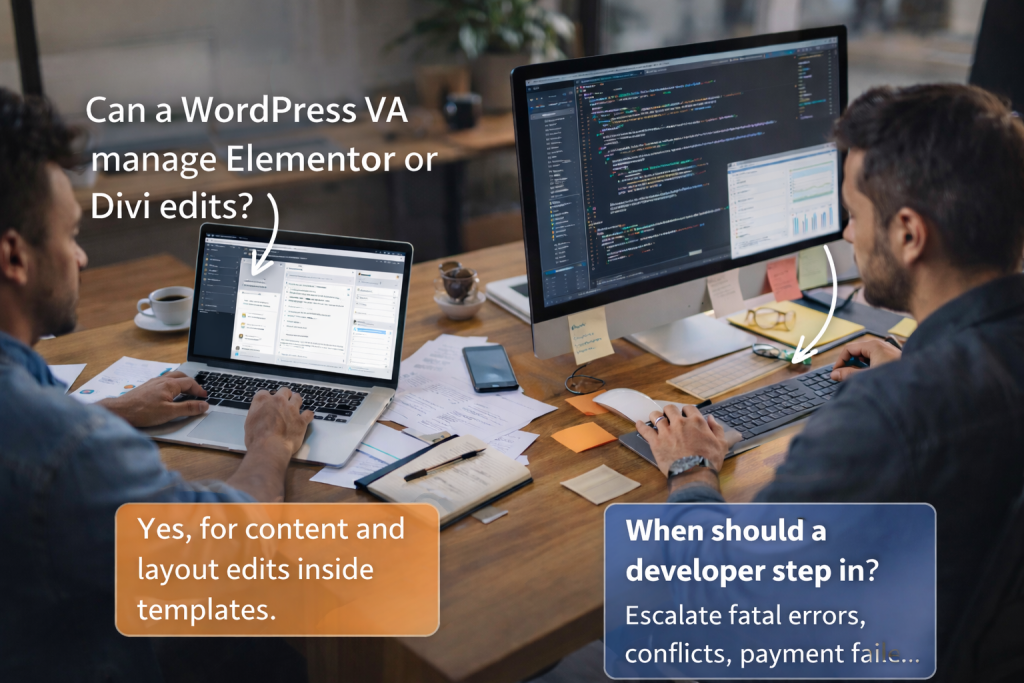
Can a WordPress VA manage Elementor or Divi edits?
Yes, for content and layout edits inside existing templates. Escalate global template changes, broken components, or custom code.
Can a VA handle Core Web Vitals work?
A VA can handle basics like image optimization and caching settings. A developer should handle deeper fixes. Google describes Core Web Vitals as real-world UX metrics and notes they align with what ranking systems aim to reward.
When should a developer step in?
Escalate when you see fatal errors, repeated 500 errors, persistent plugin conflicts, payment failures, theme work, or anything that forces log-level debugging.
The governance layer: access design beats “trust”
Security risks force a strategy change. You do not delegate safely by hoping. You delegate safely by controlling access.
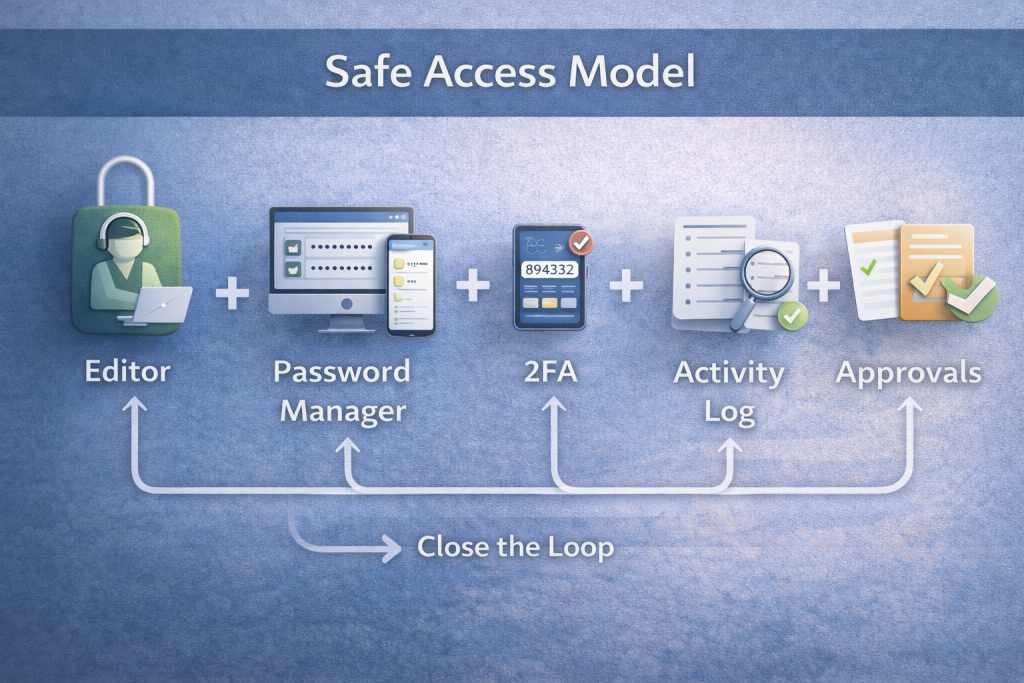
NIST defines least privilege as restricting access to the minimum necessary to accomplish assigned tasks.
WordPress supports least privilege through roles and capabilities. WordPress documentation lists six pre-defined roles and explains that each role gets a set of allowed actions.
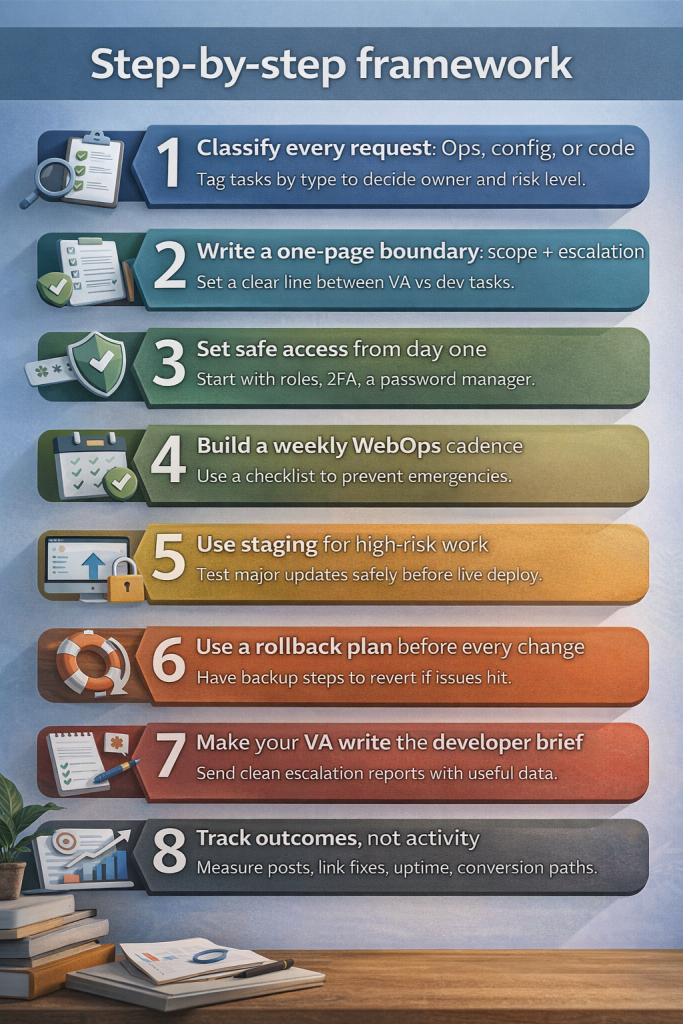
Step-by-step framework
1) Classify every request: Ops, config, or code
What to do: Tag each task before anyone touches the site.
Why it matters: The tag decides the owner and the risk controls.
Quick example:
- “Upload this post and add internal links” = Ops
- “Forms stopped sending emails” = Config
- “Checkout throws a fatal error” = Code
2) Write a one-page boundary: scope + escalation triggers
What to do: Create a simple Scope of Work with three lists: VA owns, developer owns, escalate when.
Why it matters: A boundary prevents scope creep and panic-driven routing.
Quick example boundary:
- VA owns: publishing, page edits, on-page SEO, image optimization, routine updates, broken link fixes, QA checks
- Developer owns: custom code, theme and child theme work, migrations, error logs, complex conflicts, database work
- Escalate when: revenue path breaks, errors persist after isolation, logs show PHP errors, checkout fails, performance requires code
3) Set safe access from day one
What to do: Start with least privilege, then add controls that remove password sharing.
Why it matters: Access mistakes create the fastest path to damage.
Quick example setup:
- give Editor access for content work
- use a password manager for shared tools
- enable 2FA on admin accounts
- install an activity log so you can audit changes
4) Build a weekly WebOps cadence
What to do: Make maintenance boring and repeatable.
Why it matters: A checklist prevents emergencies and protects consistency.
Weekly checklist example:
- take a backup and confirm a restore point
- update plugins in a set order
- test top pages, forms, and checkout
- check Search Console coverage warnings
- fix broken links and 404s
- record changes, outcomes, and next actions
5) Use staging for high-risk work
What to do: Test major updates, new plugins, and theme changes on staging.
Why it matters: Staging protects revenue pages and reduces downtime risk.
Quick example: Test a page builder update on staging, run QA, then push live.
6) Use a rollback plan before every change
What to do: Write rollback steps that anyone on the team can run.
Why it matters: Rollback turns risk into a controlled event.
Quick example rollback:
- restore the last known-good backup
- revert the last plugin or theme change
- disable the conflicting plugin
- re-test checkout, forms, and key pages
7) Make your VA write the developer brief
What to do: Require a clean escalation brief.
Why it matters: Developers fix faster when they can reproduce the issue.
Developer brief template:
- URL affected
- what changed right before the issue
- steps to reproduce
- screenshot or short recording
- error message, console output, or log snippet
- plugins involved with versions
- what the VA already tried
8) Track outcomes, not activity
What to do: Measure publish cadence, backlog size, uptime, and conversion flows.
Why it matters: You buy throughput and reliability, not “hours.”
Quick example report: “Published 4 posts, fixed 11 broken links, cleared 9 backlog tasks, confirmed form routing.”
That system makes the hiring decision obvious.
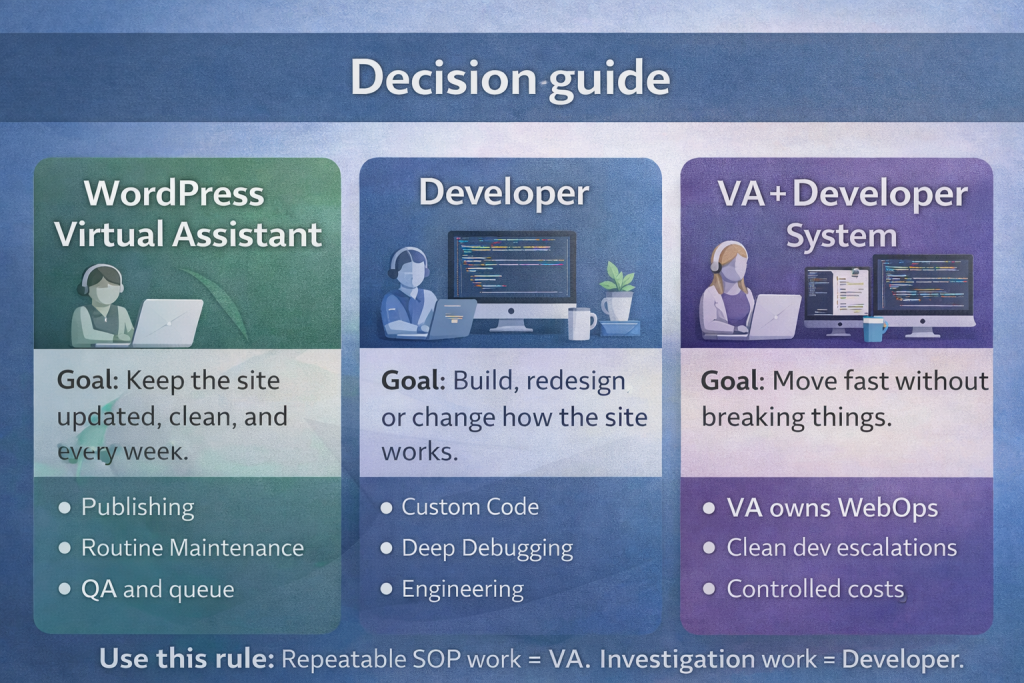
Decision guide
Which one fits your goal?
Goal: Keep the site updated, clean, and moving every week
Choose a WordPress Virtual Assistant. You need reliable execution: publishing, routine maintenance, QA, and a managed queue.
Goal: Build, redesign, or change how the site works
Choose a developer. You need engineering decisions, code ownership, and deeper debugging.
Goal: Move fast without breaking things
Choose a VA + developer system. Let the VA own WebOps and route engineering work with clean briefs.
The 80/20 truth most teams miss
Most CMS work repeats. Most repeatable work fits an SOP. A WordPress VA can own that 80%. Your developer should protect time for engineering tasks that only a developer can solve.
A short comparison table
| Need | WebOps VA | Developer |
|---|---|---|
| Publish posts, format pages, upload media | Yes | No |
| On-page SEO in Yoast or Rank Math | Yes | No |
| Routine updates with backup and QA | Yes | Sometimes |
| Forms, routing, basic tracking checks | Yes | Sometimes |
| Speed basics: image WebP, cache settings | Yes | Sometimes |
| Custom code, child theme work, PHP errors | No | Yes |
| Error logs, persistent conflicts, deep debug | No | Yes |
| WooCommerce checkout failures with code causes | No | Yes |
Location question: where should you hire?
Teams often hire from specialized offshore hubs such as the Philippines and South Africa because these markets offer strong English proficiency, established remote work talent, and cost-efficient capacity. Many people call this global talent arbitrage. It simply means you hire the same role from a lower-cost market without lowering standards.
Common mistakes and fixes
1) You hire a developer for “site management”
Fix: Put a WordPress VA in charge of WebOps, then keep a developer for escalation.
If you ignore it: You pay engineering rates for admin work and delay publishing.
2) You hand over Administrator access by default
Fix: Start with Editor access and add privileges only when needed.
If you ignore it: One mistake can change settings, break pages, or expose data.
3) You update live without a safety net
Fix: Back up first, update in order, then test key paths.
If you ignore it: A plugin update can break forms or checkout and kill conversions.
4) You skip staging because you want speed
Fix: Use staging for major updates, new plugins, and theme changes.
If you ignore it: You test in production and customers pay the price.
5) You escalate with a vague message
Fix: Require the escalation brief: URL, steps, recent changes, error output.
If you ignore it: Developers waste time reproducing the issue and bill more.
6) You treat every issue like a mystery
Fix: Run a triage flow before escalation: caching, plugin conflict, permissions, then logs.
If you ignore it: You burn hours and still escalate with no useful context.
7) You let drafts rot in Google Docs
Fix: Give the VA a publishing SOP: formatting rules, internal links, image specs, QA steps.
If you ignore it: SEO stalls even when you create good content.
8) You run requests with no queue
Fix: Use a ticket list with priority rules and a weekly delivery rhythm.
If you ignore it: Loud requests win and the backlog grows.
9) You skip change logs and approvals
Fix: Require a weekly change log and a short summary.
If you ignore it: Nobody can trace what changed when something breaks.
Mini case studies
Case 1: The marketing team that could not publish
A content lead produced drafts weekly. Publishing stalled because nobody owned formatting, internal linking, image compression, and QA. A WordPress Virtual Assistant took the queue, shipped on a weekly cadence, and logged changes. The developer stepped in only when a page builder template broke, which protected budget and speed.
Case 2: The ecommerce store with “random” checkout failures
A store owner blamed hosting whenever checkout failed. The VA added a post-update QA routine: checkout test, payment test, email confirmation test, and a change log. When the issue returned, the VA escalated with reproduction steps and plugin versions. The developer isolated a conflict faster because the brief removed guesswork.
Case 3: The agency drowning in small site tasks
An agency lost margin on small edits: content uploads, broken links, image swaps, and metadata tweaks. They hired a WordPress VA to run WebOps across client sites with SOPs and logs. Developers focused on higher-value builds and custom work, which improved delivery and profit.
What does a WordPress Virtual Assistant do that a developer should not do?
A WordPress Virtual Assistant manages WebOps tasks: content publishing, plugin updates, quality assurance, and content hygiene. A WordPress developer handles code, site architecture, complex debugging, and critical backend fixes.
Can a WordPress Virtual Assistant update plugins safely?
A WordPress Virtual Assistant can update plugins safely by following a checklist: create a backup, update plugins in logical order, test critical user paths, and log all changes. Use a staging site for risky updates.
Should I hire a WordPress Virtual Assistant or a developer for speed issues?
Hire a WordPress Virtual Assistant to address speed issues caused by images, caching, and page size. Hire a developer when speed issues involve Core Web Vitals or code-level performance problems.
What access should I give my WordPress assistant?
Give a WordPress Virtual Assistant Editor-level access for content work. Follow the principle of least privilege and grant only the access required for specific tasks.
How do I know a WordPress task needs escalation?
Escalate a WordPress task when it involves fatal errors, repeated 500 errors, persistent plugin conflicts, failed payments, theme overrides, or tasks requiring log-level debugging.
Should I hire one person to handle everything on WordPress?
Hiring one person to manage all WordPress tasks increases risk. Use a two-role model: a Virtual Assistant runs WebOps, and a developer handles escalations. This model improves reliability and controls cost.
Can a WordPress Virtual Assistant help with SEO and content marketing?
A WordPress Virtual Assistant supports SEO and content marketing by publishing posts, implementing on-page SEO, managing internal links, compressing images, and maintaining the editorial calendar.
Why do plugins create so many security problems in WordPress?
WordPress plugin vulnerabilities account for 97% of new security issues, according to Patchstack. Frequent updates and plugin hygiene reduce risk.
Next step
If you want steady publishing, clean maintenance, and fewer emergencies, build a WebOps workflow with clear escalation.
Aristo Sourcing can match you with a WordPress Virtual Assistant who runs checklists, protects access, and escalates cleanly to developers when work crosses into code. Visit aristosourcing.com and book a free consultation.
